Article 002 - Adding a 4G Router as a Failover Internet Connection
- Details
- Published: Thursday, 09 October 2025
- Hits: 1956
pfSense: 4G LTE Backup WAN with Automatic Failover
- Introduction
- Hardware Overview
- Step 1 – Configure the 4G Router
- Step 2 – Add the 4G Interface in pfSense
- Step 3 – Configure Gateways
- Step 4 – Create a Failover Gateway Group
- Step 5 – Firewall Rules
- Step 6 – Testing Failover
- Step 7 – Email Notifications (optional)
- Step 8 – Final Notes
- Results
- Extra: Notification Emails
Introduction
If your internet comes via DSL, fibre or similar, and you're worried about outages disrupting service, you can set up a reliable backup using a 4G LTE router as a secondary WAN connection for pfSense.
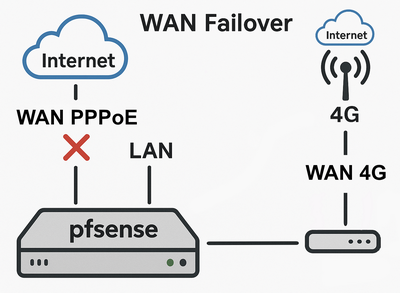
If your main connection fails, pfSense automatically switches to 4G within seconds, then restores the primary WAN once it's back online, all without any intervention.
This setup introduces no new or unusual security concerns. The 4G router simply sits in front of pfSense, just like your existing WAN, and all of pfSense's firewall and security features continue to apply exactly as before.
The goal: automatic failover when the main connection drops, and automatic recovery when it returns. This isn't an exhaustive guide, as some details depend on your existing pfSense configuration.
Hardware Overview
| Item | Details |
|---|---|
| pfSense firewall | x86-64 or Netgate ARM hardware |
| Primary WAN | Your main internet connection, called WAN_MAIN here |
| Secondary WAN | The 4G LTE router, called WAN_4G here |
| Existing LAN subnet | 192.168.1.0/24 (assumed) |
The 4G router needs a mobile phone SIM card for data, and connects to pfSense via Ethernet.
Step 1 – Configure the 4G Router
- Insert a SIM card into the 4G router.
- Connect to the router directly with a Cat5 cable and open its default admin login page.
- Check the APN settings (usually detected automatically).
- Make sure the router has a static IP, e.g.
192.168.10.1. - Disable Wi-Fi, as it isn't needed.
- Disable the DHCP server. pfSense will handle DHCP.
- Save and reboot the router.
Then connect the 4G router's LAN port to one of pfSense's spare ports. The 4G router's own WAN port isn't used.
Step 2 – Add the 4G Router's Interface in pfSense
- Log in to pfSense and go to Interfaces → Assignments.
- Add the new interface (e.g.
igc3, depending on which port the 4G router is plugged into) and name itWAN_4G. - Enable it and set IPv4 Configuration Type to DHCP.
- Save and apply changes.
pfSense should obtain an IP (usually 192.168.10.100) and a gateway (192.168.10.1, the 4G router's static IP).
Step 3 – Configure Gateways
- Go to System → Routing → Gateways. You should see two gateways:
WAN_MAINandWAN_4G. - Edit each gateway and set the thresholds below.
- Save and apply changes.
| Setting | WAN_MAIN | WAN_4G |
|---|---|---|
| Latency thresholds | Low 250 ms / High 600 ms | Low 250 ms / High 600 ms |
| Packet loss thresholds | Low 20% / High 50% | Low 20% / High 50% |
| Monitor IP | 8.8.8.8 | 8.8.4.4 |
Step 4 – Create a Gateway Group for Failover
- Go to System → Routing → Gateway Groups.
- Add a group named
WAN_GROUPwith the settings below. - Save and apply.
| Setting | Value |
|---|---|
| WAN_MAIN | Tier 1 |
| WAN_4G | Tier 2 |
| Trigger Level | Member Down, Packet Loss or High Latency. You may need to experiment with this setting. |
| Description | WAN Failover |
Then go to System → Routing → Default Gateway and set Default Gateway IPv4 to WAN_GROUP (WAN Failover).
WAN_MAIN automatically, and switch to WAN_4G if it fails.Step 5 – Firewall Rules
Under Firewall → Rules, add:
| Interface | Action | Source | Destination | Description |
|---|---|---|---|---|
| LAN | Pass | A specific trusted IP address | any | Allow access to 4G router management |
This lets one specific trusted device reach the 4G router's web interface. You'll need it if your 4G router is on a different subnet from your LAN.
Step 6 – Testing Failover
- Disconnect the main WAN connection and open Status → Gateways.
WAN_MAINshows Offline, andWAN_4Gbecomes Active.- pfSense automatically reroutes traffic via 4G.
- When
WAN_MAINcomes back, it returns as the primary route. - If you've added both gateways to the pfSense dashboard, you'll see the status of each, and the globe symbol shows which one is currently active.
Step 7 – (Optional) Email Notifications
pfSense can send notifications when gateways change state. Go to Status → System Logs → Settings → E-Mail, enter your SMTP details and enable Gateway monitoring events.
Step 8 – Final Notes
- Disable remote management on the 4G router.
- Change the 4G router's admin password.
- In pfSense, the globe icon beside a gateway shows the currently active WAN.
- Back up the new pfSense and 4G router configurations.
- If you use DDNS or external monitoring, remember that failover temporarily changes your public IP.
Results
- Automatic 4G failover when the main connection drops.
- Automatic recovery when it returns.
- Seamless internet continuity during outages.
Extra: Notification Emails
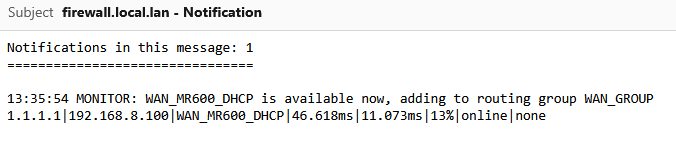
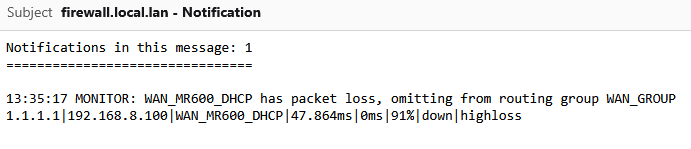
Screenshots of the notification emails I received on a disconnect and the reconnect that followed. This was most likely caused by a poorly placed 4G antenna giving low signal quality and strength.
Disconnect:
Reconnect: