

Project 029 - WinPartsFinder - Electronics Supplier Search
- Details
- Published: Thursday, 22 October 2026
- Hits: 91
WinPartsFinder
Electronic component supplier search for Windows.
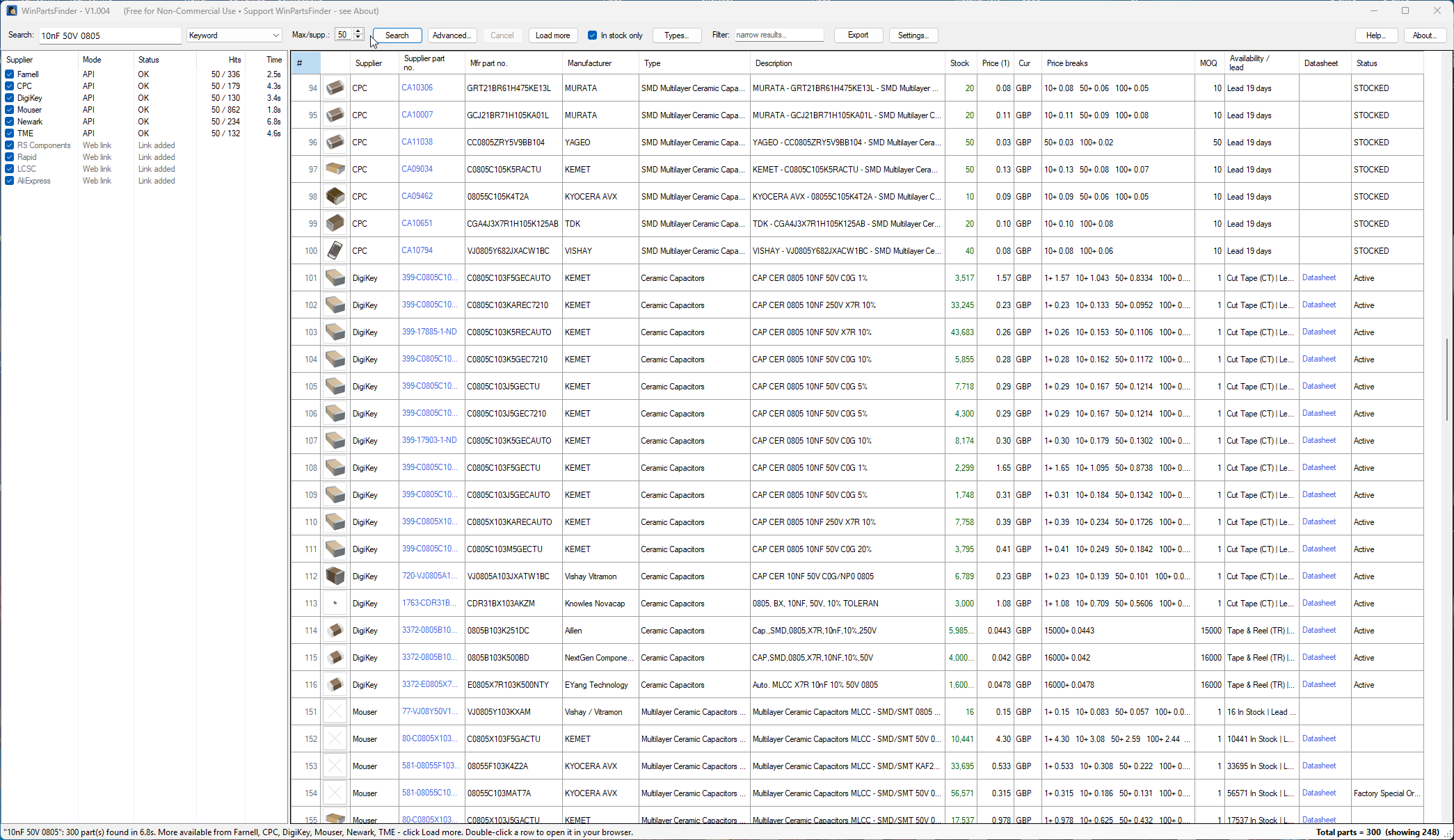 When designing Pcb's, or repairing test equipment, old or new, I spend far too long fishing around the usual parts suppliers' websites to see who has a part, how many, and at what price, and usually with multiple tabs open. WinPartsFinder does that legwork for you: type a part number or a few keywords, press Enter, and it searches the big suppliers all at once and lists stock, prices, price breaks, minimum order quantity and lifecycle status side by side in one grid.
WinPartsFinder is strictly for non-commercial, non-business use only, please see the Licence & Usage statement at the foot of this page.
Written in VB.NET using Visual Studio 2022 and .NET Framework 4.8 (built into Windows 10 & 11, so there is nothing extra to install). For Win7 you will need to install .NET 4.8 first.
Live data comes from the suppliers' own free APIs (Mouser, DigiKey and element14) and suppliers without a public API are searched with one click on their own website.
DISCUSS:
Questions, suggestions and bug reports are welcome over on the EEVBlog forum here, or contact me.
SUPPLIERS:
Each supplier is searched in one of two ways:
Live API search (stock, prices, price breaks, MOQ, lifecycle status, photos, datasheets):
You need a free API key from each one - see GETTING YOUR FREE API KEYS below.
- Mouser
- DigiKey
- Farnell (UK) - Element14
- Newark (USA) - same key as Farnell
- CPC - same key as Farnell
- TME
Website link (one click opens that supplier's own search results in your browser):
These have no public search API.
- RS Components
- Rapid Electronics
- LCSC
- AliExpress
- Your own - add any other supplier in SETTINGS with its website search address.
FEATURES:
- One search covers every selected supplier, with results arriving as each one answers.
- Keyword or Manufacturer Part Number search.
- Advanced search pop-up
- LOAD MORE - fetch the next batch from any supplier that has more (e.g. Hits 50 / 312).
- Part photos - thumbnails in the grid, click for a bigger view.
- Click the supplier part number to open the product page; right-click for the datasheet or to copy part numbers.
- Sort by any column, IN STOCK ONLY, a live text FILTER, remove parts you don't want, and untick a supplier to hide its results instantly.
- Row numbers (#) that stay put, so you can note a part and find it again.
- Total parts count in the status bar.
- Export to CSV for Excel.
- Dark mode, remembered window size and column layout, tooltips on everything, built-in Help.
OS TESTED:
Win10 & Win11.
Note: Win7 is not supported. It willinstall (it needs .NET Framework 4.8 adding first here), but the suppliers' websites may require modern secure connections (TLS 1.2) which Win7 doesn't have switched on by default, so searches are likely to fail.
DOWNLOADS:
Latest installer (.msi): WinPartsFinder.msi
Or browse the installer folder on my GIT here:
https://github.com/Ian-Johnston/WinPartsFinder/tree/master/WinPartsFinder-AnyCPU_All-SetupFiles
[all files scanned with BitDefender Antivirus prior to upload]
SOURCE CODE:
This app may be used and distributed freely for strictly non-commercial, non-business purposes only. If you wish to use it within your business then contact or PM me.
The source code (Visual Studio 2022 project) is available from my GIT:
https://github.com/Ian-Johnston/WinPartsFinder
INSTALLATION INSTRUCTIONS:
Fresh Installation of WinPartsFinder:
1. Download and run the .msi installer - WinPartsFinder.msi
2. The program is installed at: C:\Program Files (x86)\IanJ\WinPartsFinder\WinPartsFinder.exe
3. Desktop and Start menu shortcuts are created to run the app.
4. Run the app, click SETTINGS and paste in your API keys (see below).
5. Your settings and keys are stored in C:\Users\[username]\AppData\Roaming\WinPartsFinder\settings.json
Updating WinPartsFinder app:
1. Install using the newer .msi installer as above. It replaces the old version and does not touch your settings or keys.
Moving WinPartsFinder to a new PC:
1. Install WinPartsFinder on the new PC.
2. Copy your settings.json from C:\Users\[username]\AppData\Roaming\WinPartsFinder\ on the old PC to the same folder on the new PC.
3. Re-enter your API keys in SETTINGS - for security they are encrypted for your Windows user on that PC only, so they can't be read on another PC. Everything else (suppliers, layout, dark mode etc.) carries over.
Installation Notes:
1. Requires .NET Framework 4.8, which is already part of Windows 10 & 11. The installer checks for it.
2. Uninstall from Windows Settings > Apps. Your settings.json is left in place in case you reinstall; delete the WinPartsFinder folder in AppData\Roaming if you want it gone too.
3. The installer isn't code-signed, so Windows SmartScreen may say "Windows protected your PC" - click More info > Run anyway.
GETTING YOUR FREE API KEYS:
Each user needs their own keys - they're free. The GET A KEY links in SETTINGS open each sign-up page. Without keys, those suppliers still work as website links.
MOUSER:
1. Go to the Mouser API Hub - https://www.mouser.co.uk/api-hub/ and sign up for the Search API.
2. Paste the key into SETTINGS > Mouser Search API key.
DIGIKEY:
1. Sign in at https://developer.digikey.com/ and create an Organization.
2. Add a Production App. Select ProductInformation V4 (leave the others as None). The OAuth Callback can be https://localhost - it isn't used.
3. Open the app and copy its Client ID and Client Secret into SETTINGS.
4. Choose your DigiKey site and currency, e.g. UK / GBP.
ELEMENT14 (FARNELL & NEWARK):
1. Register an application at https://partner.element14.com/
2. Tick Issue a new key for Product Search API. The Basic tier is plenty for one person.
3. Paste the key into SETTINGS > element14 API key - one key works for both Farnell and Newark.
Free API tiers allow roughly 1000 calls a day per supplier; each search, and each Load More, is one call.
INSTRUCTIONS / NOTES FOR USE (basic only):
The built-in HELP button explains everything in more detail, and hovering over any control shows a tip.
SEARCHING:
Type a part number or keywords (e.g. LM358 or 10nF 50V 0603) and press Enter or SEARCH.
Keyword searches descriptions and part numbers. Manufacturer part no. looks for parts whose manufacturer part number starts with what you typed.
MAX/SUPP. is how many results to fetch from each supplier per search (up to 50).
CANCEL stops any searches still running. Previous searches drop down as you type.
Alternatively, there's an Advanced Search pop-up that provides more extensive searching options.
SUPPLIER LIST:
Tick the suppliers to search. MODE shows how each is searched (API, API (no key) or Web link), and STATUS, HITS and TIME show how each search went - hover over a supplier to see any error.
After a search, untick a supplier to hide its rows, and tick it again to bring them back. Ticking a supplier that wasn't part of the search searches just that supplier straight away.
Double-click or right-click a supplier to open the same search on its website.
RESULTS:
# numbers each part so you can note it and find it again - numbers never change until the next search.
STOCK is green when in stock; parts with no stock are greyed out. PRICE (1) is the price each at the lowest price break, and PRICE BREAKS lists them all.
Blue italic rows are website links for suppliers without an API - click them to see results on that website.
Click a SUPPLIER PART NO. to open the product page. Click a photo for a bigger view.
Click any column header to sort; click SUPPLIER to group each supplier's rows together, or # for the original order. Column widths, order and window size are remembered.
LOAD MORE:
When a supplier has more matches than it sent, its HITS shows e.g. 50 / 312. LOAD MORE fetches the next batch from every ticked supplier that has more, or right-click a supplier to load more from just that one. New rows are added at the end and selected so you can spot them.
RIGHT-CLICK MENU:
Open the product page or datasheet, copy the manufacturer or supplier part number, or copy rows ready to paste into Excel.
REMOVE FROM RESULTS (or the Delete key) hides parts you don't want - select several with Ctrl/Shift-click. RESTORE REMOVED ROWS brings them all back.
FILTER / EXPORT:
IN STOCK ONLY hides parts with no stock. FILTER narrows the results as you type (supplier, part numbers, manufacturer and description).
TOTAL PARTS in the bottom right shows how many parts were found, and how many are showing when some are hidden.
EXPORT CSV saves the rows shown, with product and datasheet links, to a file that opens in Excel.
TYPES FILTERING:
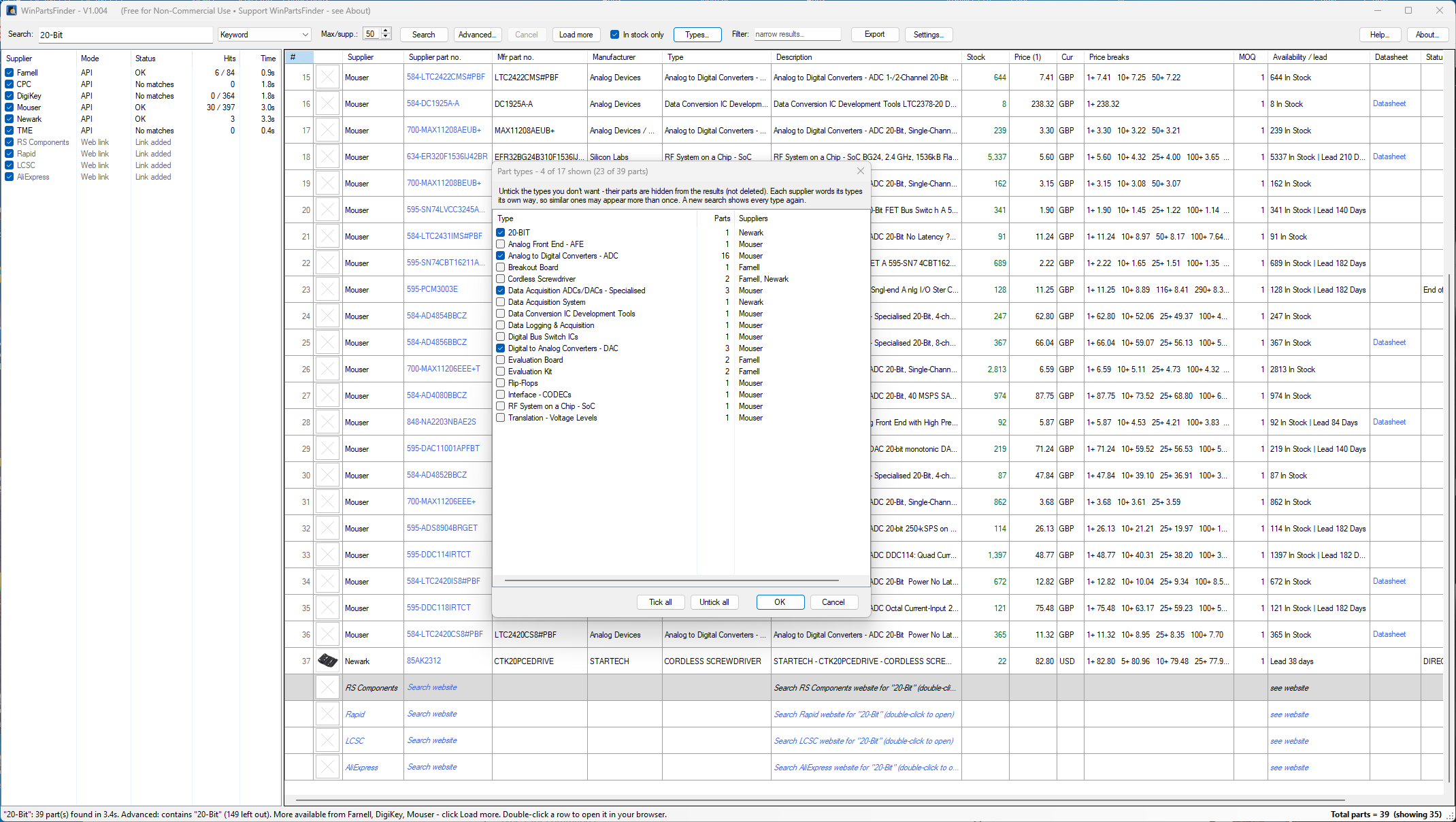
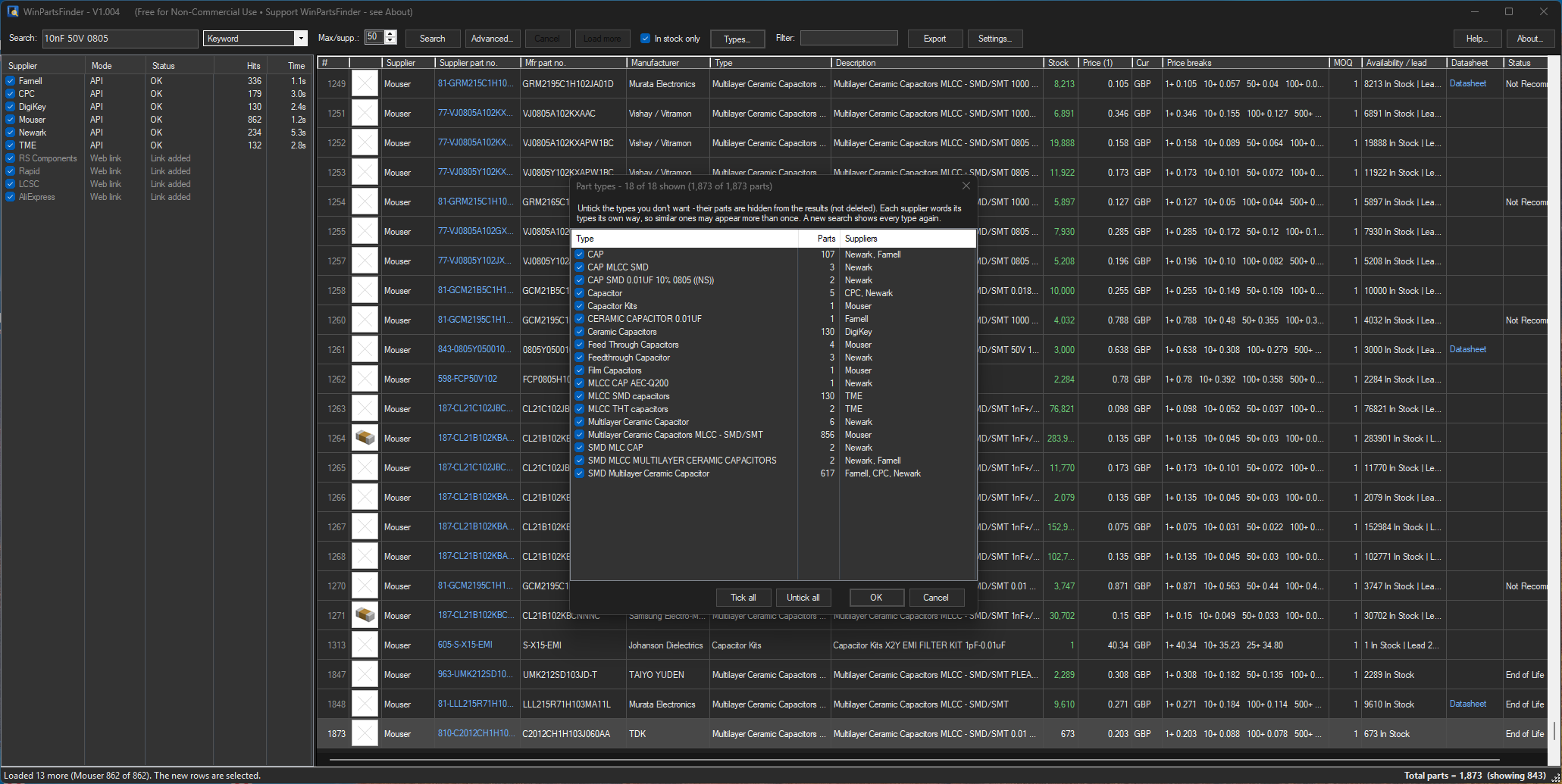
After a search, click Types… to see every kind of part found, such as Analogue to Digital Converter, Evaluation Kit or Flip-Flops, with how many came from each supplier. Untick the ones you don’t need, and they disappear from the results instantly.
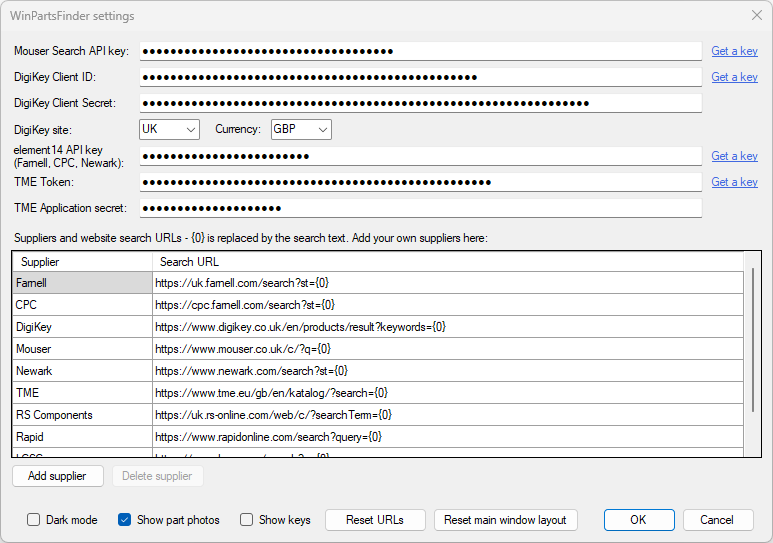
SETTINGS:
API keys (with GET A KEY links), DigiKey site & currency.
Website search addresses for each supplier, plus ADD SUPPLIER / DELETE SUPPLIER for your own.
Show part photos, Dark mode, Reset URLs, Reset main window layout.
COMMON & NOT SO COMMON ISSUES:
ISSUE 1:
A supplier shows Error:
Hover over the supplier in the list to see why.
HTTP 401 - the key or secret is wrong. Paste it again in SETTINGS, checking for spaces at either end.
HTTP 403 - the key isn't active yet, or (DigiKey) ProductInformation V4 isn't selected on your DigiKey app.
Timeout - the supplier was slow to answer, search again.
ISSUE 2:
Fewer results than expected:
Check IN STOCK ONLY isn't ticked and FILTER is empty - TOTAL PARTS in the bottom right shows e.g. "Total parts = 14 (showing 1)" when something is hiding rows.
ISSUE 3:
Mouser rows have no photo:
Mouser doesn't allow its photos to be downloaded by apps, so Mouser rows borrow a photo of the same part from DigiKey or Farnell when one was found.
ISSUE 4:
Prices in different currencies:
Each row shows its own currency (CUR column). Farnell is in GBP, Newark in USD, DigiKey in the currency you choose in SETTINGS, and Mouser in the currency of the account your key was registered with. Sorting by price doesn't convert between currencies.
ISSUE 5:
Window off-screen or layout in a mess:
Use SETTINGS > RESET MAIN WINDOW LAYOUT and click OK.
ISSUE 6:
New apps are sometimes flagged by Windows anti-virus scans or SmartScreen as they aren't code-signed. If it happens to you then please let me know and I will contact the anti-virus company involved.
SCREENSHOTS:
These are not necessarily the latest screenshots as I don't always keep them all up-to-date.
They are also reduced in size for this webpage. Click any screenshot to view it full size:
Main WinPartsFinder Window
Settings
TYPES Filtering
TYPES Filtering - Dark mode
SUPPORTING WinPartsFinder:
If you find the program useful, please consider donating via PayPal (also from the ABOUT button in the app).
Your support helps me spend more time developing and extending WinPartsFinder, and also helps fund the purchase of faulty test equipment for repair on my YouTube channel.
LICENCE & USAGE:
WinPartsFinder is provided free of charge for personal, non-commercial use only.
The WinPartsFinder source code is made publicly available and may be used, modified and redistributed for non-commercial purposes only.
Neither WinPartsFinder nor its source code, in whole or in part, may be used for commercial purposes without a separate commercial licence from the author.
This includes use within businesses and organisations.
Please contact the author to discuss commercial licensing arrangements.
Each user must obtain their own supplier API keys and follow each supplier's API terms of use.
Supplier names and trademarks belong to their respective owners. WinPartsFinder is not affiliated with or endorsed by any supplier.
DISCLAIMER & LIMITATION OF LIABILITY:
WinPartsFinder and its source code are provided "as is", without warranty of any kind, express or implied. Use of this software and source code is entirely at the user's own risk.
Prices, stock levels and other part data come from third parties and may be out of date or wrong - always check with the supplier before ordering.
To the fullest extent permitted by law, the author shall not be liable for any loss, damage, data loss, loss of use, loss of profits, or other direct, indirect, incidental or consequential loss arising from the installation, modification or use of, or inability to use, this software or source code.
