


Article 003 - Adding a VPN Server to Pfsense
- Details
- Published: Wednesday, 15 October 2025
- Hits: 1943
pfSense: OpenVPN Remote Access Server Setup
- Introduction
- Step 1 – Create the Certificate Authority
- Step 2 – Create the Server Certificate
- Step 3 – Run the OpenVPN Wizard
- Step 4 – Create a VPN User
- Step 5 – Verify the WAN Firewall Rule
- Step 6 – Assign the OpenVPN Interface (optional)
- Step 7 – Export the Client Profile
- Step 8 – Test on iPhone / Desktop
- Step 9 – Email Alert on VPN Connect (optional)
- Step 10 – Security Hardening
- Troubleshooting
- Results
Introduction
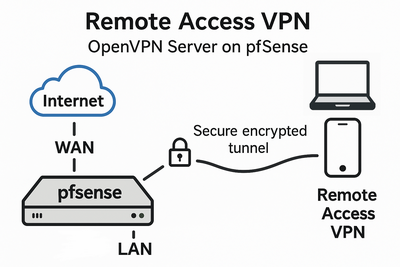
This guide sets up a secure OpenVPN Remote Access server on pfSense, creates a user, exports a client profile for iPhone or desktop, and hardens the service. It's written to be followed end to end on a working pfSense box.
This guide uses example IPs and hostnames. Replace them with your own.
Never share your real certificates, private keys or exported
.ovpn files publicly.Step 1 – Create the Certificate Authority (CA)
- Go to System → Cert. Manager → CAs and click + Add.
- Fill in the settings below, then click Save.
| Setting | Value |
|---|---|
| Descriptive name | VPN_CA |
| Method | Create an internal Certificate Authority |
| Key length | 4096 |
| Digest | SHA256 |
| Lifetime | 3650 days |
| Common Name | VPN_CA |
| Country / Organisation | Optional |
This CA will sign your server and user certificates.
Step 2 – Create the Server Certificate
- Go to System → Cert. Manager → Certificates and click + Add/Sign.
- Fill in the settings below, then click Save.
| Setting | Value |
|---|---|
| Method | Create an internal certificate |
| Certificate authority | VPN_CA |
| Descriptive name | OpenVPN_Server_Cert |
| Common Name | vpn.yourdomain.com |
| Alternative Names | Add a SAN of type IP Address: your router's fixed public IP address. Optionally, add a SAN of type FQDN: vpn.yourdomain.com |
| Certificate Type | Server Certificate |
Step 3 – Run the OpenVPN Wizard
- Go to VPN → OpenVPN → Wizards.
- Type: Local User Access. Select
VPN_CAandOpenVPN_Server_Cert. - Set the core settings below.
- Finish the wizard. pfSense adds a WAN rule and a basic OpenVPN rule.
| Setting | Value |
|---|---|
| Protocol | UDP on IPv4 only |
| Interface | WAN |
| Port | 1194 (or a custom high UDP port) |
| Tunnel Network | 10.8.0.0/24 |
| Local Network | 192.168.1.0/24 (your LAN) |
| Redirect Gateway | Enabled (routes all client traffic via the VPN) |
| Compression | None |
| TLS | Enable TLS Authentication (adds a static key for DoS protection and hardening) |
| Crypto | AES-256-GCM (data cipher) and SHA256 (auth) |
Step 4 – Create a VPN User (and User Certificate)
- Go to System → User Manager → Add.
- Enter a username and a strong password.
- Tick Click to create a user certificate. Set CA to
VPN_CAand Type to User Certificate. - Click Save.
Step 5 – Verify/Add the WAN Firewall Rule
- Go to Firewall → Rules → WAN.
- Make sure there's a Pass rule matching the table below.
- If it's missing, click + Add (top) to create it, then Apply Changes.
| Setting | Value |
|---|---|
| Action | Pass |
| Protocol | UDP |
| Destination | WAN address |
| Port | 1194 (or your custom port) |
Step 6 – (Optional) Assign the OpenVPN Interface
- Go to Interfaces → Assignments.
- Click + next to the OpenVPN instance (e.g.
ovpns1), name itVPN, click Save, then Apply Changes.
This isn't required, but it keeps rules and interfaces tidy and easier to manage later.
Step 7 – Export the Client Profile
- If needed, install the package: System → Package Manager → Available, find openvpn-client-export and click Install.
- Go to VPN → OpenVPN → Client Export.
- Under Remote Access Server, select your OpenVPN server.
- Host Name Resolution: choose your install hostname, or choose Other and enter
vpn.yourdomain.com. - Under User-Specific Client Export, find your user and download the iOS inline (.ovpn) profile, and/or the desktop installers as needed.
Step 8 – Test on iPhone / Desktop
- Transfer the
.ovpnfile to your iPhone (AirDrop, Files or email) and import it into OpenVPN Connect or Passepartout. - Connect with your username and password.
- Check that:
- you receive a VPN IP in
10.8.0.x - your public IP becomes your home WAN IP (check with whatismyipaddress.com, for example)
- you receive a VPN IP in
Step 9 – (Optional) Email Alert on VPN Connect
If you'd like an email every time a user connects, use the small "client-connect" script below. It assumes pfSense's email notifications are already configured under System → Advanced → Notifications.
- Save the script to pfSense, e.g. as
/usr/local/etc/openvpn-connect-notify.sh. - Go to VPN → OpenVPN → Servers and edit your server.
- Under Advanced Configuration, add this line to Custom Options:
client-connect /usr/local/etc/openvpn-connect-notify.shThe script
1#!/bin/sh2# OpenVPN connect email (safe; timestamp generated in PHP)3# By IanJ 15-10-254 5USER="${common_name:-unknown}"6VIP="${ifconfig_pool_remote_ip:-unknown}"7REMOTE="${untrusted_ip:-unknown}"8HOST="$(hostname -f 2>/dev/null || hostname)"9 10export OVPN_USER="$USER" OVPN_VIP="$VIP" OVPN_REMOTE="$REMOTE" OVPN_HOST="$HOST"11 12cat > /tmp/vpn_notify_min.php <<'PHP'13<?php14require_once("notices.inc");15 16$user = getenv('OVPN_USER') ?: 'unknown';17$vip = getenv('OVPN_VIP') ?: 'unknown';18$remote = getenv('OVPN_REMOTE') ?: 'unknown';19$host = getenv('OVPN_HOST') ?: 'unknown';20$time = date('Y-m-d H:i:s T'); // safe: created here, no argv21 22$subject = "OpenVPN user connected: $user from $remote";23$message = "OpenVPN User Connected:\n\n"24 . "User: $user\n"25 . "VPN IP: $vip\n"26 . "Remote IP: $remote\n"27 . "Firewall: $host\n"28 . "Time: $time\n";29 30send_smtp_message($message, $subject);31PHP32 33/usr/local/bin/php -q /tmp/vpn_notify_min.php >/dev/null 2>&1 || true34rm -f /tmp/vpn_notify_min.php35exit 0Codequote by Ian JohnstonThis lightweight shell/PHP hybrid runs each time a VPN user connects. It captures the environment variables OpenVPN provides (the username, the assigned VPN IP and the user's public IP) and passes them to a short inline PHP routine. That routine uses pfSense's built-in notification system to send an email showing who connected, from where, and when. No credentials or external SMTP settings are stored in the script, so it's safe to use.
Example email
Subject: OpenVPN user connected: someuser from 12.34.56.78

OpenVPN User Connected:

User: someuser
VPN IP: 10.8.0.2
Remote IP: 12.34.56.78
Firewall: firewall.local.lan
Time: 2025-10-03 13:00:42 BST
Step 10 – Security Hardening and Other Tips
| Measure | What to do |
|---|---|
| Change the default port | Use a high UDP port (e.g. 4433 or 55123), then update your WAN rule and client profiles. |
| TLS Authentication | Keep it enabled (the wizard already did this). |
| Strong crypto | AES-256-GCM and SHA256 (done above). Keep legacy compression disabled. |
| Geo-restrict | Use pfBlockerNG to allow inbound connections from your own country only (advanced). |
| Users | Unique accounts and strong passwords. Consider 2FA for the GUI, and for the VPN if your workflow allows. |
| Keep certificates fresh | Rotate the server and user certificates periodically. |
Disabling the VPN server quickly
Stop the service
Go to Status → Services and stop the openvpn service. You can easily start it again later.
- The OpenVPN daemon stops immediately.
- Your WAN port (e.g. UDP 1194 or your custom port) stops listening.
- Existing VPN sessions are terminated.
- No clients can reconnect until you start the service again.
Disable the server
Go to VPN → OpenVPN → Servers, open your VPN server's settings and tick Disable this server.
Troubleshooting Quick Checks
Client can't connect?
Check that the WAN rule allows UDP to your chosen port, that your DDNS hostname resolves to your current WAN IP, and that your ISP isn't blocking the port.
Logs
Status → System Logs → OpenVPN
Status → System Logs → Firewall
Conflicting VPN apps on your phone?
Some "privacy VPN" apps (e.g. antivirus/VPN apps) can block OpenVPN. Turn them off while testing.
Results
- Secure remote access to your network via pfSense OpenVPN.
- Simple user management (add or revoke per-user certificates).
- A hardened service with TLS authentication and modern ciphers.
