

Article 004 - SKY-Q Main box and Mini-box connection woes
- Details
- Published: Tuesday, 17 March 2026
- Hits: 3794
Sky Q: What It Is, and Why It Causes So Many Network Problems
1. Introduction
I've had Sky Q as my home satellite TV system for many years. On the surface, it's a modern replacement for the older Sky+ boxes, offering multi-room viewing, recording and on-demand streaming.
But beneath that simple description lies something far more complicated, and that's where the problems begin. I've put this article together from years of wrestling with the problem, opening up the boxes for a good look, and some theory.
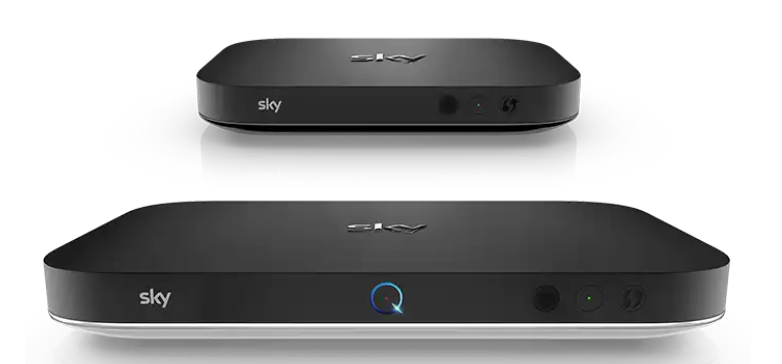
Sky Q isn't just a satellite receiver. It's effectively a hybrid of a TV system, an internal mesh network and a multi-interface bridge. A typical setup includes:
- A main Sky Q box (satellite receiver and recorder)
- Sky Q Mini boxes (multi-room clients)
- Built-in Wi-Fi mesh networking
- Wired Ethernet connectivity
Sky Q boxes don't just use your network. They actively participate in it and extend it.
2. Different Hardware in the Main and Mini Boxes
One of the most important discoveries is that the main box and the Mini boxes use completely different networking hardware.
Sky Q Mini box
- Chipset: Atheros AR7420-AL3C
- Type: Layer-2 bridge / powerline networking chipset
This chip is designed for:
- Powerline adapters
- Hybrid Ethernet bridging
- Multi-interface forwarding
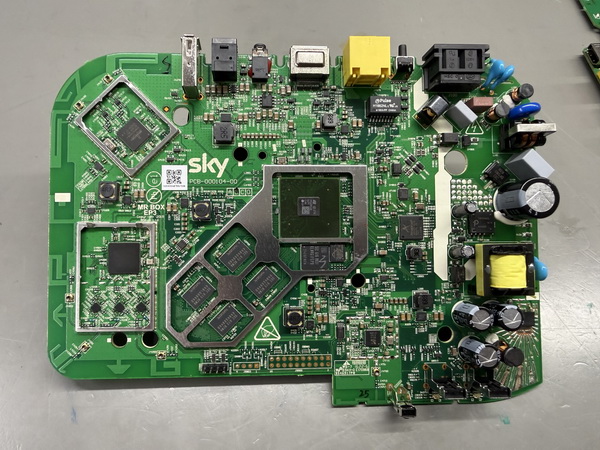
In practice: it behaves more like a small network switch or bridge than a normal Ethernet device.
Main Sky Q box
- Chipset: Broadcom TN1921 (P21 / 7278APKFSBA00B1T)
- Type: System-on-Chip with integrated networking
This is a more conventional embedded platform:
- Handles TV, decoding, apps and networking
- Behaves closer to a normal client device
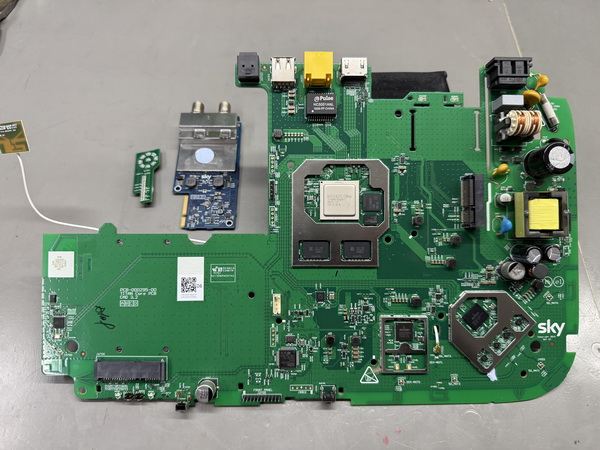
In the real world: it still suffers connection drops, but far less often than the Mini boxes.
Why this difference matters
At first, you might assume:
But that's only partly true:
- The Mini boxes are more unstable (AR7420).
- The main box is more stable, but still affected.
The whole Sky Q system is designed as a single mesh/bridge network. Even the main box keeps its Wi-Fi capability, takes part in mesh coordination and uses internal bridging logic.
3. Why Sky Q Causes Network Problems
The root issue isn't just software bugs or a poor TCP stack.
What's happening under the hood
| Device | Network path |
|---|---|
| A normal device | App → TCP/IP → NIC → Router |
| Sky Q | App → TCP/IP → internal bridge → Ethernet / Wi-Fi / Mesh |
That internal bridge, especially in the Mini boxes, can:
- switch traffic paths dynamically
- delay or drop frames
- reconfigure interfaces without warning
Common problems
No internet connection
- The box reports the internet is down (main and Mini boxes individually)
- Everything else in the house works fine
- After an internet reset, the main box and a Mini box grab the same IP address, then fail again
Ethernet/internet dropouts
- The wired connection randomly stops working
- Resetting Ethernet restores it
Streaming instability
- Apps fail
- On-demand stops
- Buffering or disconnects
Network disruption
- Broadcast storms
- ARP instability
- Switches detecting loops
What's actually going wrong
1. Layer-2 instability
The AR7420 in the Mini boxes brings:
- aggressive bridging behaviour
- broadcast/multicast forwarding
- poor isolation between interfaces
This destabilises the local network.
2. ARP and MAC confusion
Because of the internal bridging:
- MAC addresses can appear to move
- ARP tables become invalid
The router temporarily "loses" the box, and the connection appears to be down.
3. Interface switching, even on Ethernet
Even when wired:
- Wi-Fi often stays active
- the system may switch paths internally
This causes packet loss, session drops and short outages.
4. DNS fragility
Sky Q only allows one DNS server, which suggests a simplified network stack.
If DNS fails briefly, the box reports "No internet" even when the network is actually fine.
Why the main box is less bad
The Broadcom-based main box has a more conventional networking implementation and doesn't rely on AR7420-style bridging. So it tends to have fewer drops and more stable Ethernet.
How the Mini boxes make everything worse
When Mini boxes are present, the AR7420-based devices:
- inject broadcast traffic
- extend the mesh
- take part in bridging
This increases network complexity and instability, and makes dropouts more frequent.
Why "resetting Ethernet/internet" works
When you reset the Ethernet/internet connection:
- ARP tables refresh
- DHCP renews
- the internal bridge resets
The real conclusion
Sky Q's networking issues come from its fundamental design:
- the AR7420 in the Mini boxes makes the instability worse
- the Broadcom main box is better, but still part of the system
- the whole setup behaves like a network inside your network
4. How to Make Sky Q Stable (What Actually Works)
Once you understand how Sky Q behaves internally, the fixes start to make sense.
The strategy:
- reduce layer-2 noise (broadcasts, ARP issues)
- prevent interface switching (Wi-Fi ↔ Ethernet)
- isolate Sky Q from the rest of your network
1. Use Ethernet only, if possible
This is the single biggest improvement.
What to do
- Connect the main box via Ethernet
- Connect the Mini boxes via Ethernet where practical
- Disable Wi-Fi
Why it works
- Removes the mesh complexity
- Stops interface switching
- Eliminates the AR7420's wireless bridging behaviour
2. Isolate Sky Q from your main LAN
This is hugely effective, especially on pfSense or managed networks.
Simple method
- Put Sky Q on a cheap unmanaged switch
- Uplink that switch to your router
Better method
- Put the Sky Q devices on a separate VLAN
Why this works: it contains the broadcast traffic, stops the AR7420 affecting other devices, and prevents network-wide slowdowns.
3. Keep DHCP and ARP stable
- Use DHCP reservations for all Sky Q boxes
- Avoid changing IPs
- Optionally, use static ARP entries if your router supports them
4. Avoid "clever" switch features, sometimes
Managed switches can actually make things worse. These features can react badly to Sky Q's behaviour:
- STP (Spanning Tree)
- loop detection
- broadcast suppression
5. Minimise the Mini box impact
The Mini boxes are the biggest troublemakers.
- Wire them via Ethernet where possible
- Reduce how many are active while troubleshooting
6. Accept the DNS limitation
Sky Q only supports one DNS server, so point it at your router (pfSense, for example) and let that handle redundancy upstream.
7. The "reset fix"
Yes, unplugging the Ethernet works. It forces an ARP refresh, resets the internal bridge and re-establishes DHCP, but it's a temporary stabilisation, not a true fix.
A known good setup
| Device | Connection |
|---|---|
| Main Sky Q box | Ethernet → unmanaged switch |
| Mini boxes | Ethernet → the same switch |
| Switch | Single uplink → router |
| Sky Q Wi-Fi | Disabled |
Or put all the Sky Q devices on a dedicated VLAN/interface.
5. Why Sky Designed It This Way (and Why It Backfires)
At this point, it's easy to ask why Sky designed it like this. The answer is that, from Sky's point of view, the design actually makes sense. Sky Q was built to solve one very specific problem:
Most homes
- don't have structured cabling
- have poor Wi-Fi coverage
- want plug-and-play simplicity
So Sky built a system that could
- stream video between rooms
- connect devices automatically
- configure its own networking
- work out of the box
The design choice
To achieve that, Sky built a self-managed mesh network inside the TV system:
- the boxes talk directly to each other
- they form their own wireless network
- they can route traffic between themselves
They don't rely entirely on your home network.
Why the AR7420 fits this model
The Atheros AR7420 suits this kind of design, because it's built for bridging multiple interfaces, handling noisy links such as powerline and Wi-Fi, and forwarding traffic dynamically.
Where it goes wrong
| Problem | What happens |
|---|---|
| Conflict of control | Your network expects devices to be simple clients with one clear path to the router. Sky Q expects to manage its own connectivity and bridge internally. The result is two systems trying to control layer-2 behaviour. |
| Assumptions don't match reality | Sky largely assumes a flat home network, a basic router, and no VLANs or advanced switching. Many home networks now have pfSense, managed switches, VLAN segmentation and multiple access points. |
| Hidden complexity | To the user, Sky Q looks simple. Underneath, it's a mesh network, a bridge, a streaming platform and a client device all at once. |
Why it backfires in practice
The very features that make Sky Q easy to install (automatic networking, mesh behaviour and interface switching) are the same features that cause the dropouts, instability and "no internet" errors.
Designed for the average home
To be fair, in a simple setup it often works well enough: an ISP router, no VLANs, few devices and default settings.
But in a proper network
Once you introduce structured Ethernet, multiple access points, managed switches or firewalls like pfSense, the cracks show quickly.
Sky Q works best when it's allowed to be the network. It works worst when it has to behave like a normal device on yours.
6. What Could Sky Do to Fix This?
By now, the causes are fairly clear. The more interesting question is what Sky would actually need to change for Sky Q to behave properly on a modern network.
- Act as a normal client device on your network
- Act as an internal network controller and bridge
1. Add a true Ethernet client mode
This would be the single biggest improvement:
- disable internal bridging
- disable mesh networking
- disable Wi-Fi completely
- use Ethernet as the only active interface
2. Fully disable Wi-Fi when Ethernet is connected
At the moment, Wi-Fi often seems to stay active even when Ethernet is plugged in.
That alone would reduce path switching, packet loss and many of the mysterious dropouts people see.
3. Remove internal layer-2 bridging in client mode
The Mini box behaviour in particular suggests far too much bridging happens internally. In a proper client mode, Sky should stop bridging Ethernet, Wi-Fi and mesh traffic together unless that's explicitly required. This would greatly reduce:
- ARP instability
- MAC flapping
- broadcast storms
- general network confusion
4. Provide proper network settings
The current advanced settings are far too limited for a device that behaves like this on a network. At minimum, Sky should allow:
- more than one DNS server
- a clear indication of which interface is active
- better reporting of link and internet status
5. Add useful diagnostics
At present, troubleshooting is mostly guesswork. The box should expose a little more information:
- Can it reach the gateway?
- Is DNS working?
- Is packet loss occurring?
- Which interface is actually carrying traffic?
| Instead of | It could report |
|---|---|
| "No internet connection" | "DNS failed" or "Gateway unreachable" |
6. Stop auto-switching between interfaces
Automatic switching between Ethernet and Wi-Fi is one of the biggest sources of instability. Sky Q should lock to the selected interface and only fail over if the user explicitly wants that.
The reality
The reason they probably don't exist is straightforward:
- Sky designs for the average non-technical household
- simplicity is prioritised over control
- extra settings increase support complexity
My final thought
The sad thing is, Sky have known about this problem for years. My own experience suggests they've either not tried hard enough, or haven't been able to work around the current design in firmware.
I have told them that better on-screen diagnostics are a must, and they promised to pass the details on to their design team. It would save them a lot of support hours.
Even so, if they added just one option, disable mesh and use Ethernet only, it would probably solve the majority of real-world problems overnight.
